Do you know you can manage your WordPress Plugins and Themes without logging in to the WordPress admin panel? That's correct! You can easily manage your WordPress Plugins and Themes through WordPress Manager by Softaculous.
One advantage of using Softaculous is; that there might be times when you’ll not be able to access your WordPress Admin dashboard, due to some plugins/themes conflicting with updates.
Certain plugins and themes are not so happy together. The code of the plugin or theme might not be supported by each other or with certain PHP versions, which might prevent WordPress itself from working, leading to a "There has been a critical error on your website error".
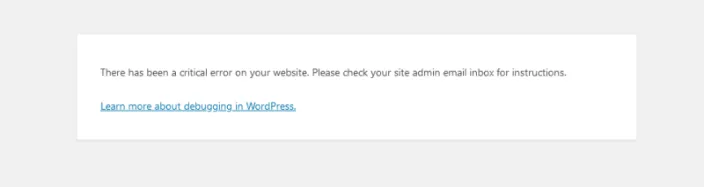
With Softaculous, you can easily deactivate the plugins and themes that could be causing the error, through WordPress Manager in Softaculous and regain access to your WordPress admin panel.
In this guide, you will discover simple steps to manage your WordPress Plugins and themes from WordPress by Softaculous Manager itself.
Activate/Deactivate WordPress Plugins
Step 1: Log in to your Control Panel (e.g. cPanel)
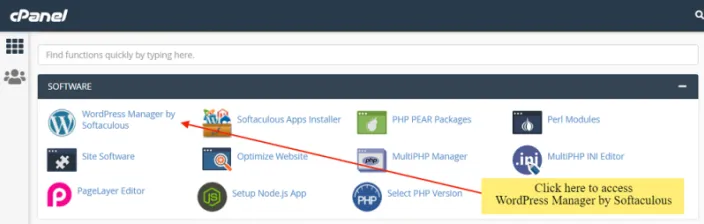
Step 2: From the Software section, click on WordPress Manager by Softaculous.
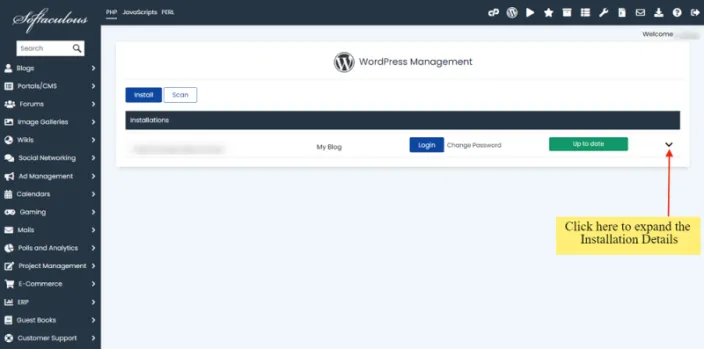
Step 3: Look for your website in the below list in which you want to activate/deactivate the Plugin and click on the down arrow icon at the end of the line, this will expand the installation with more details.
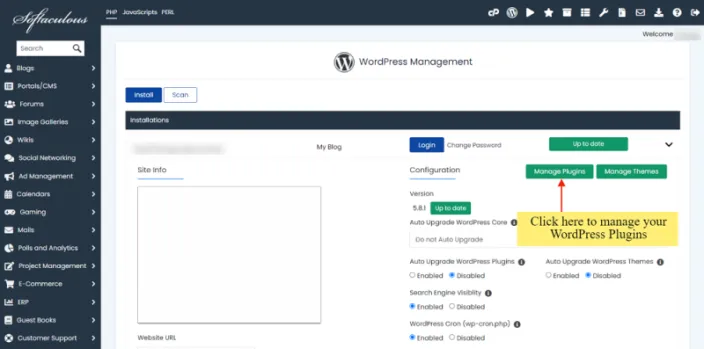
Step 4: Click on the Manage Plugins button. It will list all the installed plugins on your WordPress site.
Step 5: Activate/Deactivate the plugin by swiping the switch button.
Add Plugins from WordPress.org using Softaculous
Step 1: Click on the Manage Plugins button and navigate to the second tab i.e. Add Plugins tab.
Step 2: Enter the name of the plugin that you want to install in the search field, Once you see the plugin you’re looking for on the list, all you need to do is click on the “Install” button.
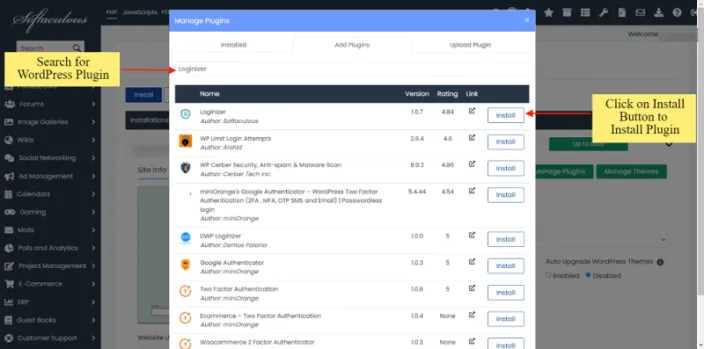
Wait for a few seconds, Softaculous will fetch the Plugin from WordPress.org, install it on your WordPress site, activate it, and it will display a success message.
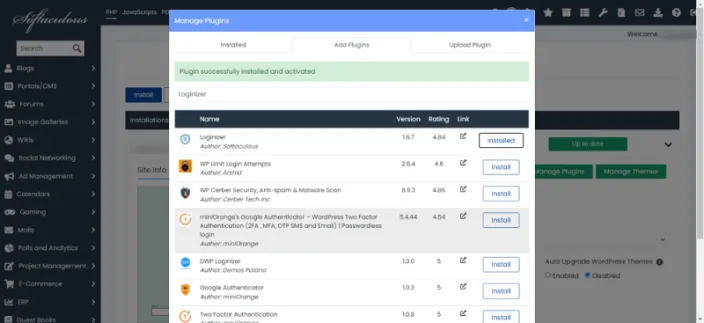
That’s it! The Plugin has been successfully installed and activated on your WordPress site.
Upload and Install your Custom Plugin
Step 1: Click on the Manage Plugins button and navigate to the last tab i.e. Upload Plugin
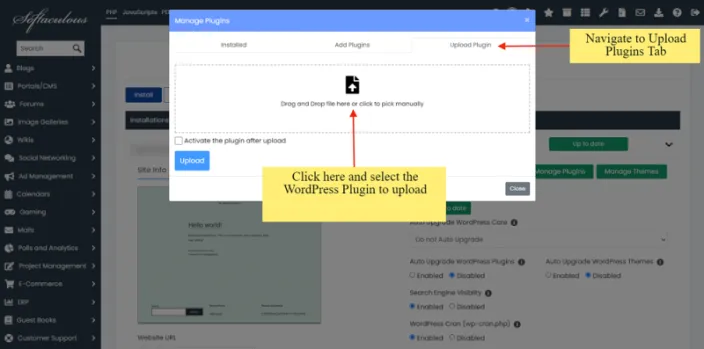
Step 2: Click on the Upload icon and select the desired Plugin that you want to upload. Choose if you would like the uploaded plugin to be activated after installation.
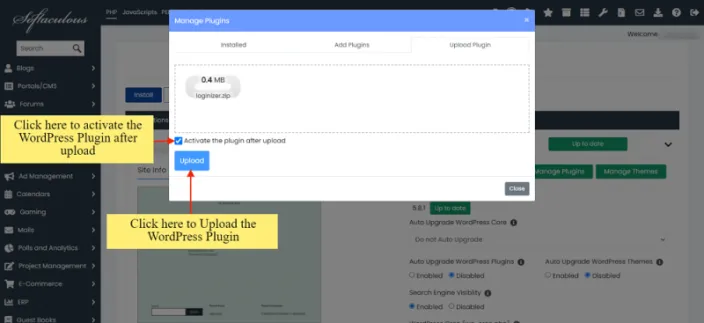
Step 3: Click on the Upload button, to upload the Plugin to your WordPress site.
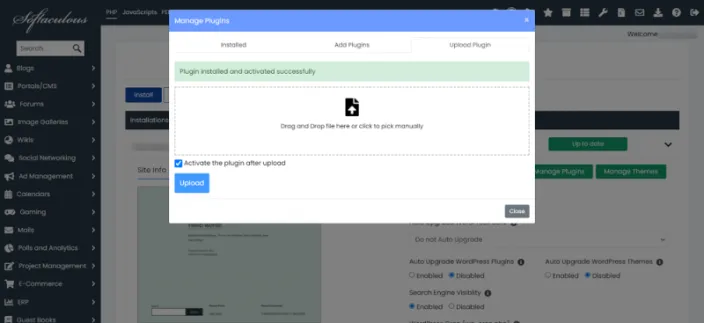
Wait for a few seconds for Softaculous to upload the Plugins and you’ll receive a success message after the plugin is installed on your WordPress site.
All the above options are available for WordPress Themes as well and can be managed similarly from WordPress Manager by Softaculous.
That's it!
If there is anything we can assist you with, feel free to Contact Us