We will cover the most common cause of Error Establishing A Database Connection – misconfiguration of database access details in this guide.
Make sure that the following conditions are met:
- The database name matches the existing database name
- The username of the assigned database user matches the existing database username
- The Password matches the one assigned to the specified database user
- The specified user has access privileges to the site’s database.
The Database name, database username, and password can be found in the wp-config.php file located in the root directory of your WordPress installation. To check these details, do the following:
1. Log into your cPanel and navigate to the File Manager menu
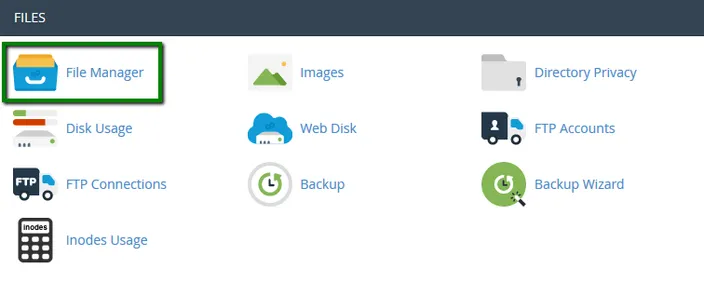
2. Navigate to the root folder for your WordPress installation.
3. Right-click on the wp-config.php file with the mouse button and select Edit or View option
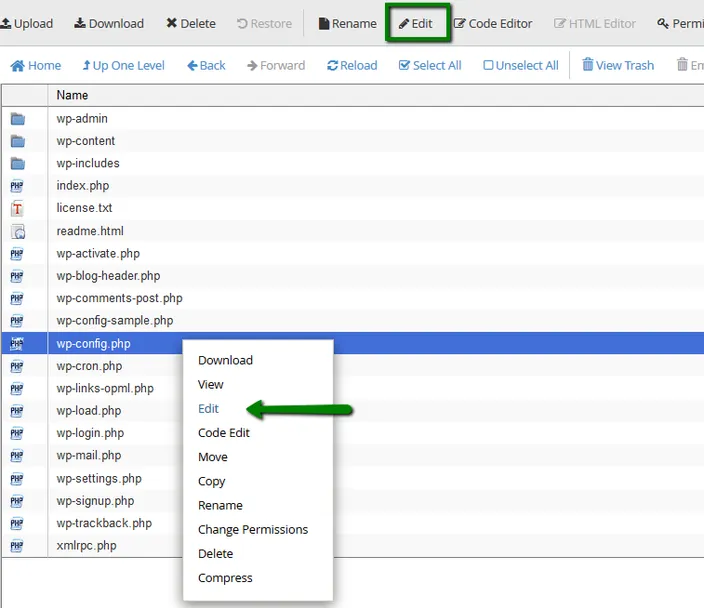
4. The file should contain the name, username, and password of the database assigned to your WordPress installation:
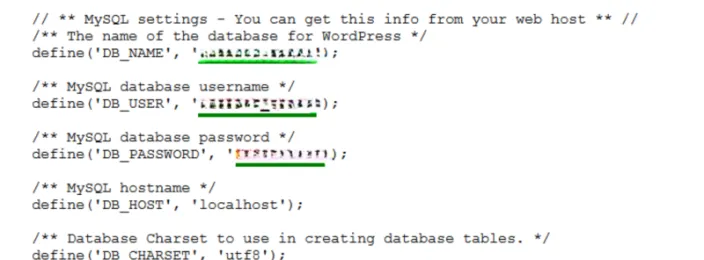
Once you have found the database details in the wp-config.php file, the next step is to check if they are correct.
5. Go to MySQL Databases in cPanel:
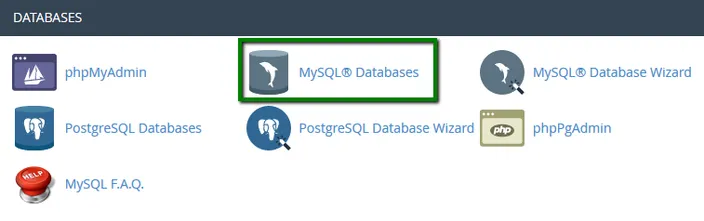
6. Carefully check if there is a database whose name fully matches the one specified in wp-config.php file
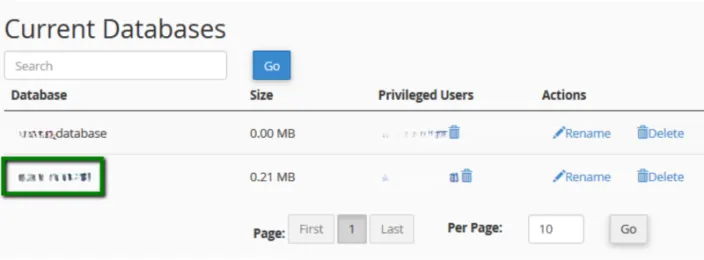
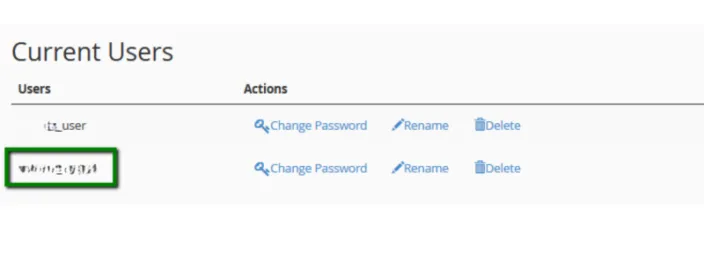
7. Then scroll down and check the database username
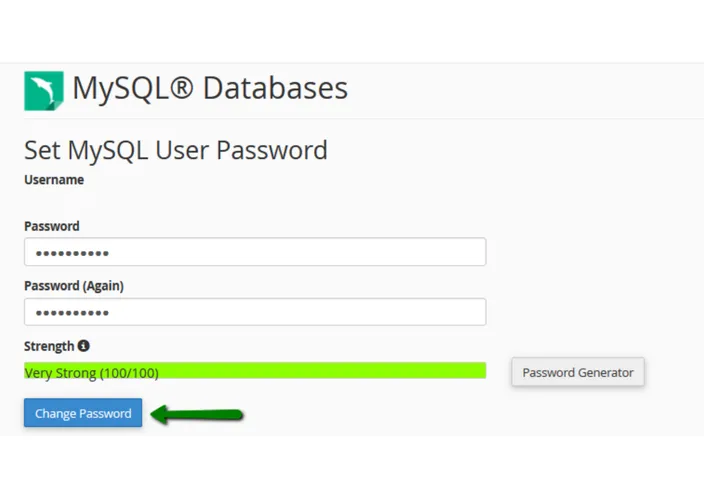
8. Set the password to the one specified in the wp-config file
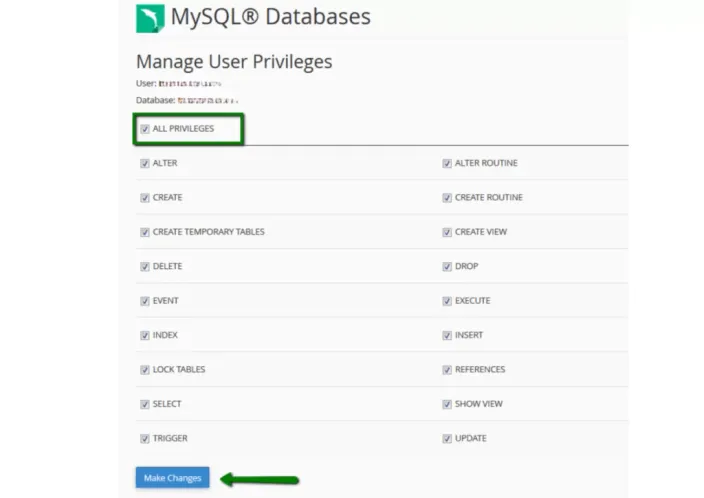
9. Lastly, it is necessary to make sure that the specified user has access privileges to the database:
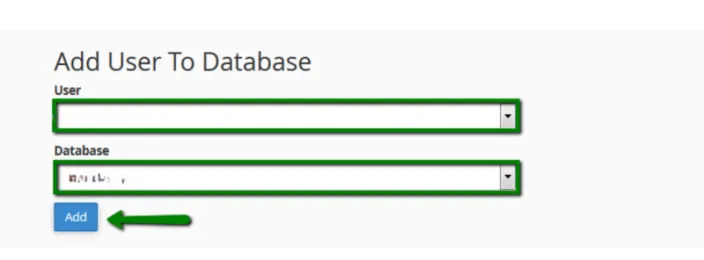
10. Click on the All Privileges checkbox and apply the changes. Once done, you will get the message stating that MySQL User has been successfully added to the Database with all privileges
That's it!
Once the database, its username, and password have been changed to the correct ones, the Error Establishing A Database Connection error on your WordPress site should be fixed.
If you experience the same issue after performing the steps above, feel free to contact our support team for further assistance.