In our previous post on Remote Desktop Services - Part 1, we had just completed installing Remote Desktop Services.
Before we continue, just a reminder: your server hostname must be a fully qualified domain name (FQDN) that resolves e.g rdp01.mydomain.co.za. If it is not, the Remote application links will not work.
Remote Desktop Services Application Collection
We will now look at adding applications to our Application Collection. RDS in our server manager should now look like the image below.
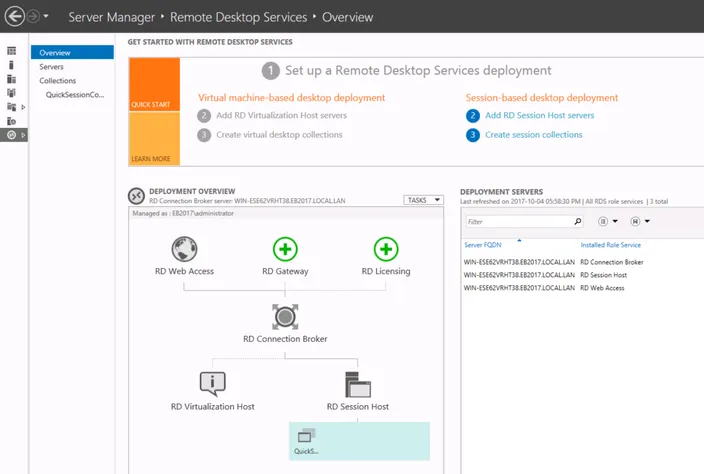
"Collections" is the term Microsoft uses for published RDS applications.
Click on "QuickSessionCollection" (you can create more than one of these Collection Groups later).
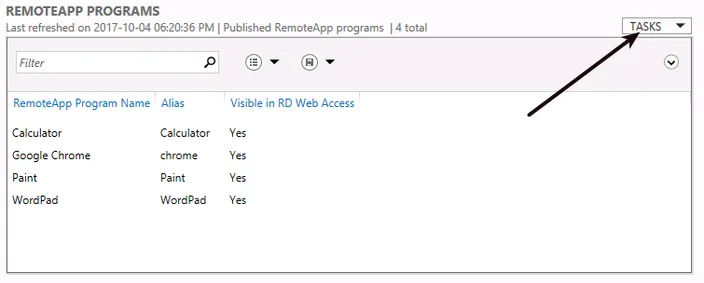
Here, under the second block in the middle, you will see REMOTEAPP PROGRAMS. Here Microsoft has already added some sample programs which you can either leave or remove.
To add your own program (which you must already have installed on the server), Click on the TASKS square on the top right of the block.
Publishing your applications
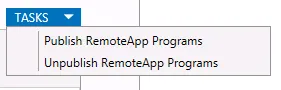
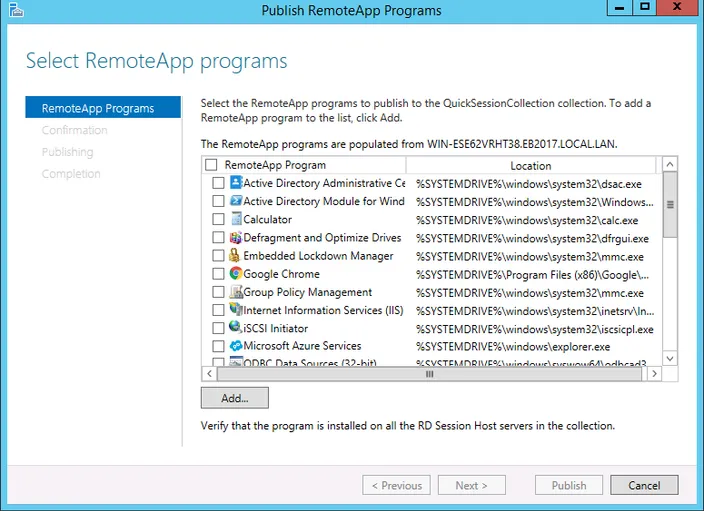
Select "Publish RemoteApp Programs" and an App Publishing Wizard will open.
Here you merely select the program or programs you need published by Remote Desktop Services and choose "Next" and "Publish".
Accessing your applications
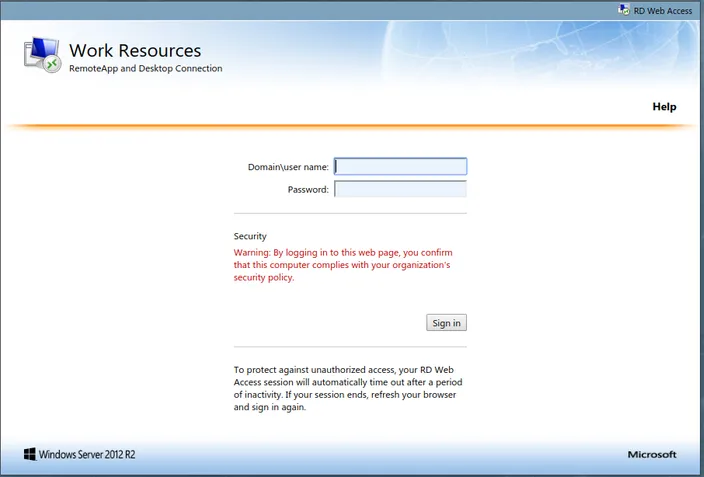
Once published, you can download the "application RDS shortcut" by going to your server IP address ie https://101.101.101.101/RDweb where you will need to log on with a valid RDP domain\username and password.
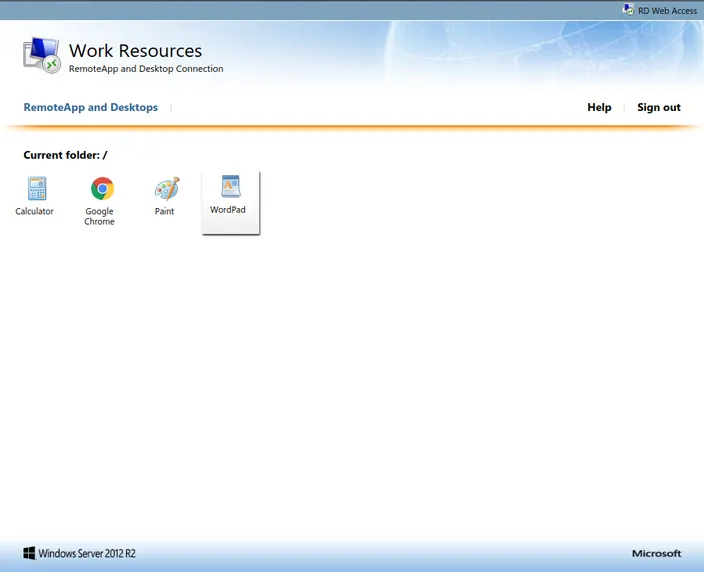
After you have signed in, the applications will appear in the window.
Click on the application you want as a Desktop Shortcut and it will download to your PC.
Download to your Desktop and there you have it. A brand new Remote Application.
Of course, there are various RDS settings you can ask Google about such as redirecting your printing to your local PC and using a local folder to save or access your documents from as well, but we will not go into that here.
Happy Hosting!