It is always critical to serve your website without a Secure Sockets Layer (SSL) which is very important and the standard technology for keeping an internet connection secure while safeguarding any sensitive data herein.
On this article, you shall be learning how best to securely add SSL from the most trusted SSL provider CloudFlare for free.
3 Steps to Secure your Website Using Cloudflare SSL
Before you do this, ensure that you have an active Web Hosting Plan with an active Domain.
STEP 1:
Login to CloudFlare or create a new account with them. Then click on Add New Website.
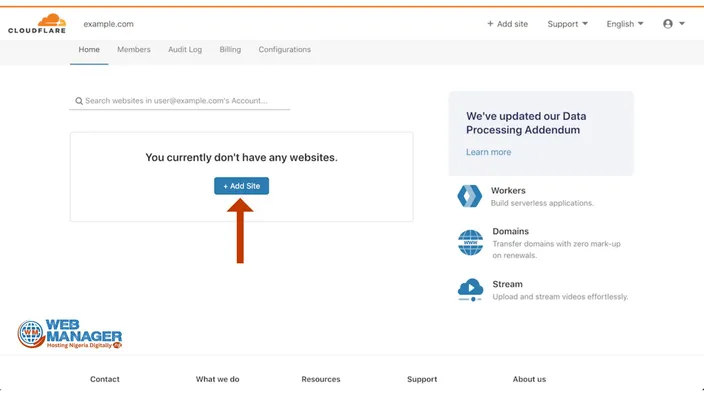
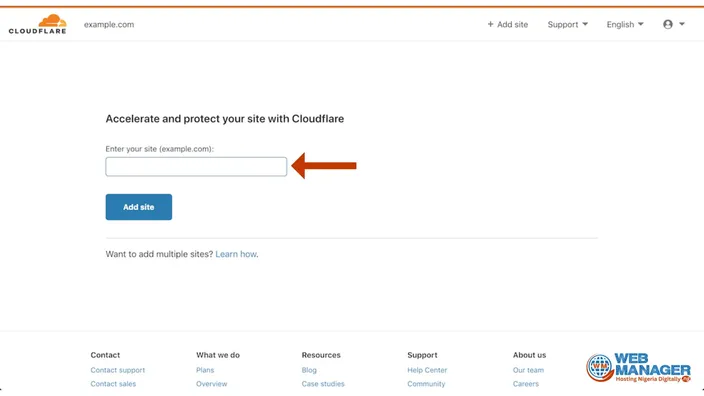
The on the next screen, add the domain name you would want to assign SSL to and click "ADD SITE" as seen below.
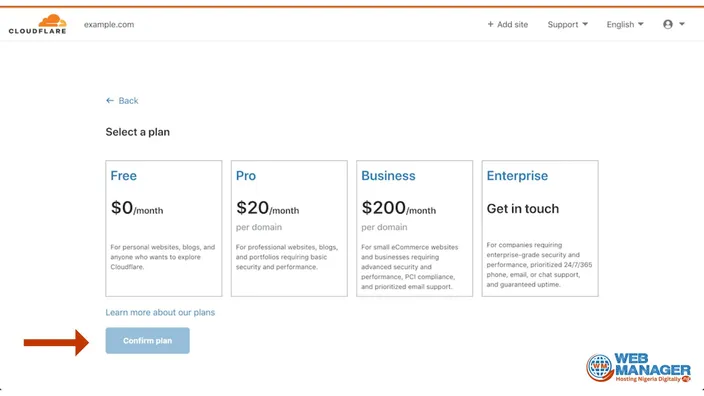
On the next page, you will notice that there are about 4 plans to choose from. If you don't have money to buy the Pro, Business, or Enterprise plans, you can choose the Free plan to start with as it will fully secure your site after activation.
When you select your desired plan, click on "Continue" to get to the next stage as seen below.
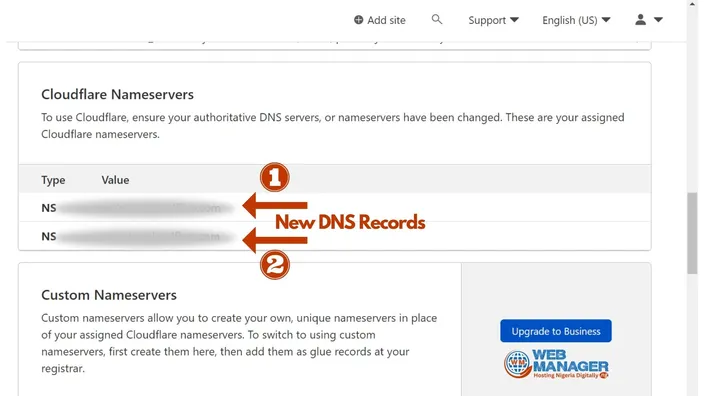
At this stage, Cloudflare would automatically fetch your DNS records from your domain origin and will require you to change your current Nameserver from your Domain Host with the New DNS Records they will provide for you as seen below.
Then head on to your Domain Hosting Provider to change your Nameserver records with the two provided above.
STEP 2:
Head to your Domain Provider and Logging to your account. Here, we shall be using our client dashboard for exhibition.
Login to your Account on HostAfrica and head to your domain list as seen below.
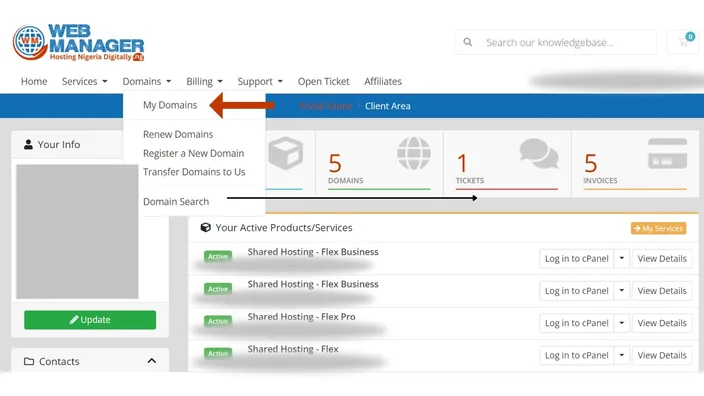
Note: you change nameservers in the account where your domain is registered, so your provider's screens may look different from the ones below.
Then, click on the Domain list and select the domain you wish to change its Nameservers.
Update the Nameservers with the values given to you from Cloudflare and click on the "Change Nameservers". Learn More about Nameserver update here.
Finally, update the records on Cloudflare's side by clicking that you have updated the Nameservers.
STEP 3:
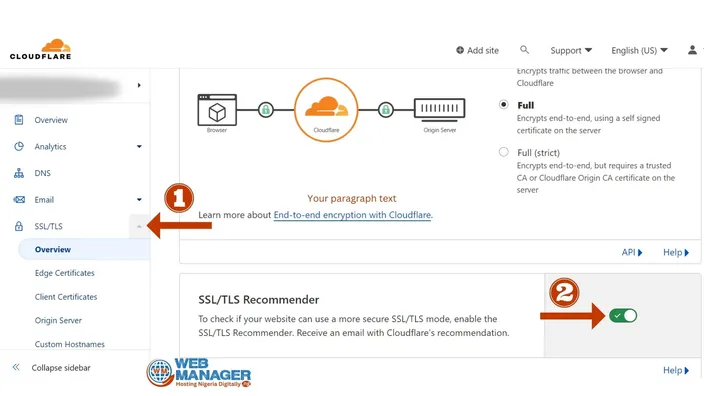
Activate the SSL from the Cloudflare side by heading to the SSL/TLS menu on the left sidebar. Select the Full Encryption and toggle the button in the step 2 ON as seen below.
All is done.