Auto SSL is assigned to every hosting account on HostAfrica. Most times the propagation period takes too long before it reflects, so you might assume your site isn't secured, at times it won't reflect at all. As a result, SSL must be activated manually.
In this guide, you will learn how to manually activate SSL on your domain(s) in your cPanel area. But before that, first, check if your domain has SSL on. To do so, navigate to the right side of your cPanel dashboard and check if there is a lock sign attached to your domain.
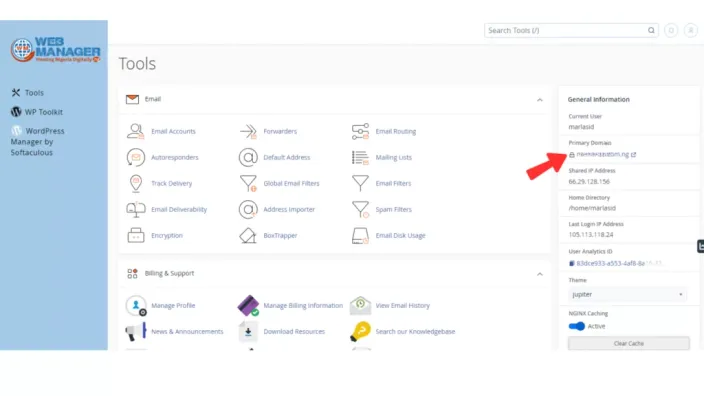
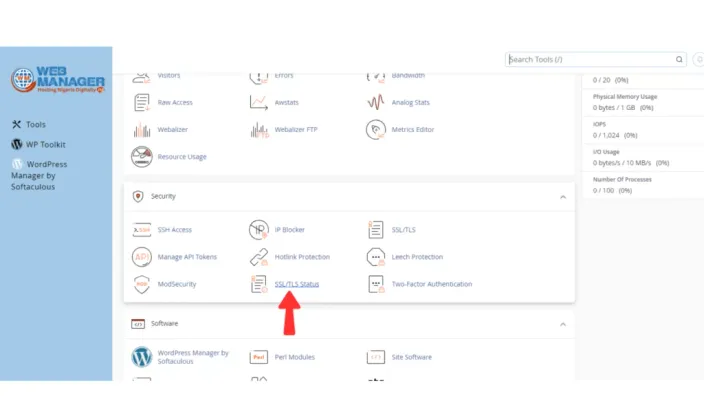
If your primary domain has the lock sign on it, then it is secured with an SSL certificate, if it doesn't, then no SSL activated yet. On the other hand, you might have multiple domains, to check their status, scroll down and click on SSL status
In there, you will see the list of domains and other services that are secured by SSL.
Moving forward, if the domains are secured and verified, they will display a green color on the left side, if it is not, it will be red.
Select the domain(s) you want SSL on and click on Run AutoSSL
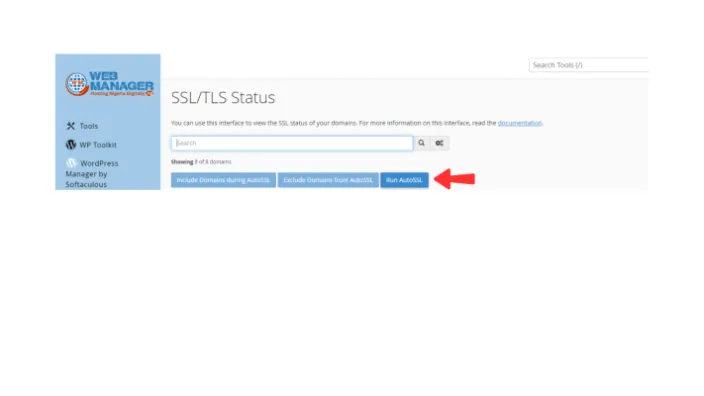
It will take some time to load, before it gets activated and reflect on your domain.
That's it!
Need help? Contact Us.