You must have come across something like this

either on your site or that of another.
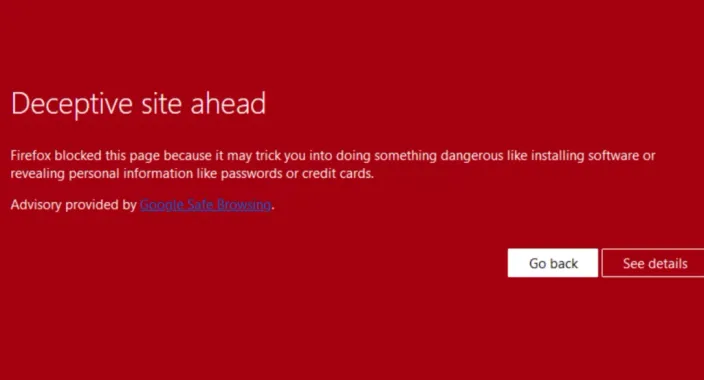
If it's on your site or it has made you suspicious of another, don't be, at the same time be alarmed.
Most web browsers have phishing and malware detection turned on by default which is why you will see these alarm signs when trying to visit a page suspected of having phishing, or malware.
Google uses a safe browsing technology to detect and display this kind of warning.
If a website is marked and blacklisted by Google, a visitor gets a distinct, full-screen alert blocking access to the respective site.
Sometimes you will see this other kind of warning message:
- Deceptive site ahead
- The site ahead contains malware"
- Suspicious site
- The site ahead contains harmful programs
- This page is trying to load scripts from unauthenticated sources
- Visiting this website may harm your computer
Unfortunately, these blacklisted websites are legitimate websites where hackers have inserted malicious content. Here are some common reasons for getting blacklisted:
- Your HTML or PHP code was hacked
- The redirects to harmful and infected sites were inserted through iframes or JavaScript
- Flash .swf files were added to your website
You can inspect specific links to your website with the help of the Google Site Status diagnostic tool. Or, if you have Google Search Console set up, navigate to the Security & Manual Actions >> Security issues to check the list of affected pages and get additional info on them.
What is Malware?
Malware is malicious software specifically created to gain access to or damage a computer without the knowledge of the owner. Viruses, worms, and Trojan horses are examples of malicious software that are often grouped together and referred to as malware. Malware can open access to your personal information, such as passwords and credit card numbers, or alter your search results.
How to Fix this issue on Your Site
Below are some suggestions on how to resolve this issue if it’s happening to your site:
- Scan and remove the malicious content from your site. You can use the Virus Scanner option in cPanel and the Google Site Status diagnostic tool.
- Scan your PC.
- Register and verify your site in the Google Search Console.
- Check the Security Issues section of Google Search Console to see details of sample URLs that may be infected.
- Find the cause of the security issue and fix it. Otherwise, your site is likely to be re-infected.
- Request a review in the Security Issues section in Google Search Console (or via the Report Incorrect Phishing Warning tool) when your entire site is clean and secure. Once Google determines your site is fixed, they will remove the malware label.
That's it!