Running scripts via cron jobs is a useful way to automate tasks on your website or server.
Here's a step-by-step guide on how to set up and manage cron jobs.
But first, If you intend on running scripts on a scheduled basis, keep in mind the following:
1. Based on our User Policy, running cron jobs with intervals of less than 5 minutes or setting up more than 5 simultaneous cron jobs is not allowed on all shared servers.
2. Add >/dev/null 2>&1 at the end of the command, if not the server will send an email notification each time a cron job runs. This might be useful for testing purposes and monitoring, but if not attended to, such emails will accumulate in the email account specified in the Cron email field, and if it is one of your cPanel email accounts, it might cause issues with inodes usage.
NOTE: It might be possible that your script didn't generate an output immediately, this must have been that the notification emails are not sent, but don't worry, the cron job is working.
Let's start!
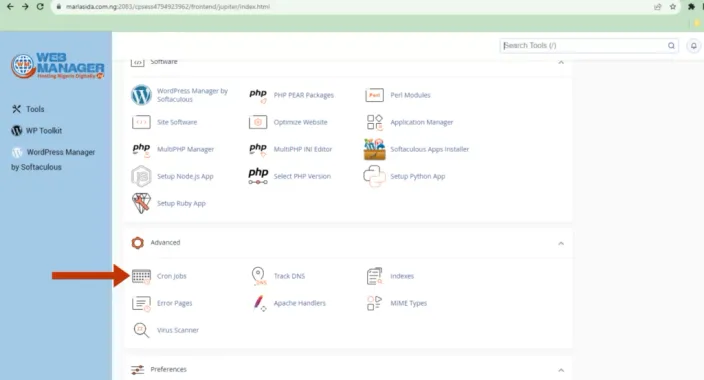
To set up a cron job, go to cPanel and scroll down to the section; Advanced > Cron Jobs
Add New Cron Job
Inside this area, you should,
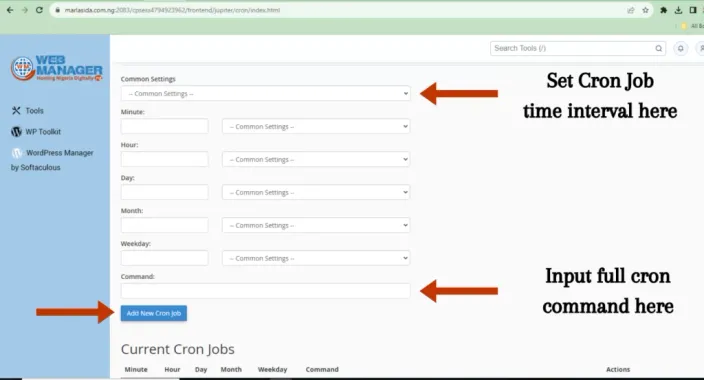
PLEASE NOTE: Cron jobs run according to the server time.
The general cron job format is as follows:
[path to environment] [Path to script] [Script parameters]
For example, if you want to run a PHP script located in the public_html directory, the correct cron command will be:
/usr/bin/php /home/cPaneluser/public_html/yourscript.php
/usr/bin/php -q /home/cPaneluser/public_html/yourscript.php (for business servers)
or if you want to use a relative path (different commands are divided by “;”):
cd /home/YourcPuser/public_html/; /usr/bin/php yourscript.php
cd /home/YourcPuser/public_html/; /usr/bin/php -q yourscript.php (for business servers)
For Python and Perl scripts, there is no need to use a full path to the environment. The environment interpreter directive will be enough on shared servers.
python /home/YourcPuser/public_html/yourscript.py
perl /home/YourcPuser/public_html/yourscript.pl
Alternatively, you can just use curl request as the cron job command for the same purpose:
curl "http://yourdomain.com/script.php?argument1=arg1&argument2=arg2"
curl "http://yourdomain.com/script.py"
curl "http://yourdomain.com/script.pl"
However, unlike the first method, curl-based cron jobs will work only if URLs specified in curl requests are resolving, e.g., DNS records for the domain are correct and running.
You can also check if a cron command is executed correctly by running it in the command line via SSH.
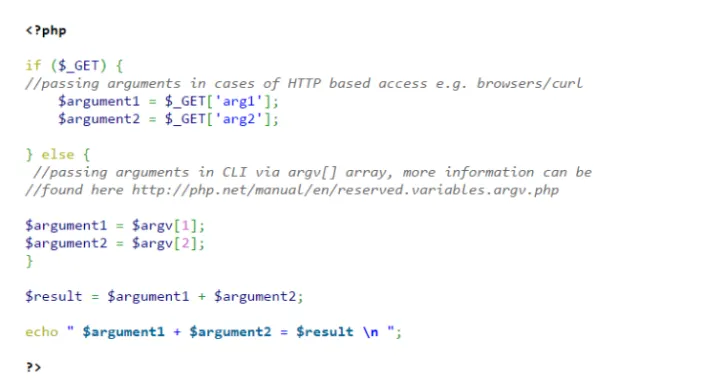
We will use this simple summing script with external parameters and run it using a web browser, Cron, and SSH:
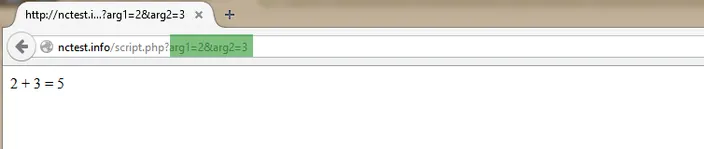
First, let's just run it in the browser pulling arguments after the script name and “?” directive:
http://nctest.info/script.php?arg1=2&arg2=3
In CLI, you can run both cron commands and CURL requests, just log into your cPanel account via SSH and input them as shown below:

Thats it! Hope the guide was helpful.