In the cPanel, you can easily import and export databases using the phpMyAdmin menu which you can find in the Databases section.
Please note, that only databases of 1 GB maximum can be imported/exported in phpMyAdmin. Larger databases should be imported/exported via SSH, you can use this guide.
Database Import
1. Log into your cPanel
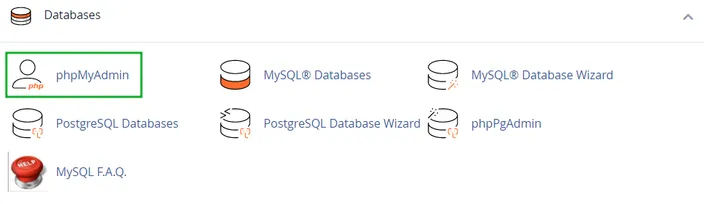
2. Navigate to the phpMyAdmin menu.
3. Select the database that you need to import:
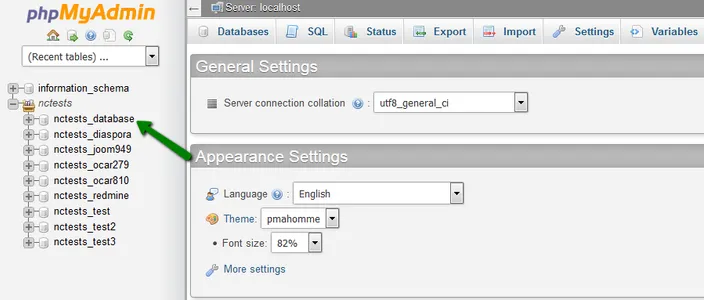
Note that: The left area where you see all the database lists will differ from what you will see on your end. It will be based on what you have created.
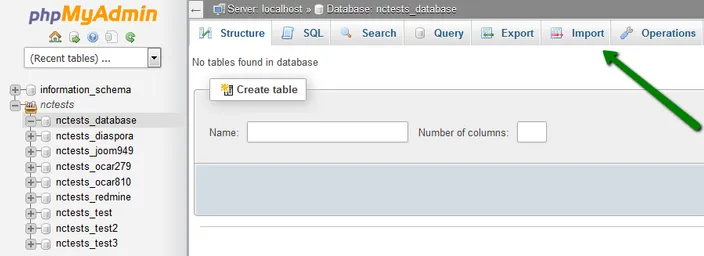
4. In the upper bar, click the tab Import
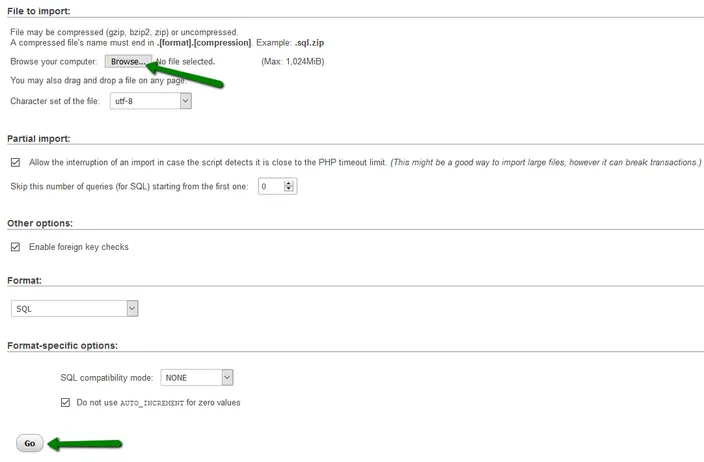
5. Click Browse and locate the .sql file on your computer. Once done, click Go
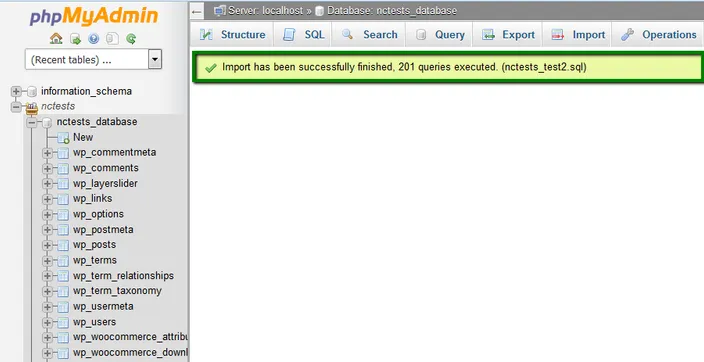
6. Afterward, you will see a notification that your database has been successfully imported
Database Export
1. Log into your cPanel
2. Navigate to the phpMyAdmin menu
3. Select the database you need to export
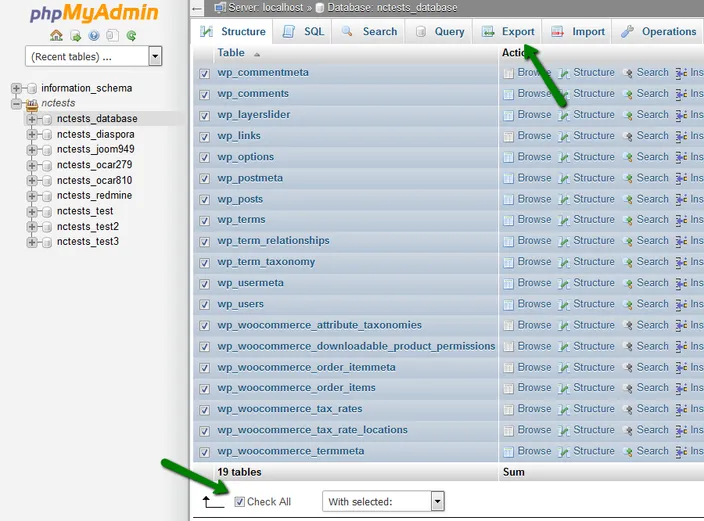
4. Choose the tables that you need to export or click Check All. Click Export to proceed
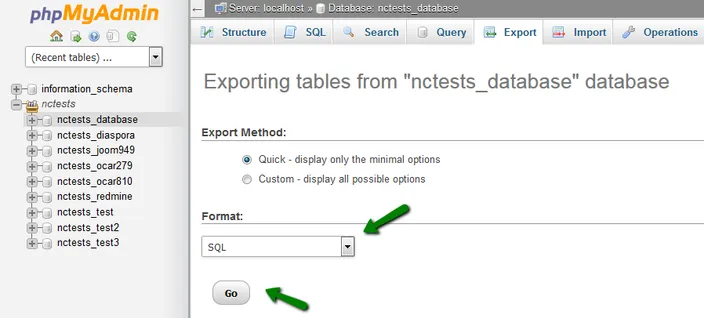
5. Select the required file from the drop-down menu in Format and click the Go button
Access Denied - Create Database db_name Error. How to fix it?
If you receive this error message, you can resolve the issue by following the steps below:
1. Open the dump of your database using any text editor on your computer (for instance, Notepad or WordPad).
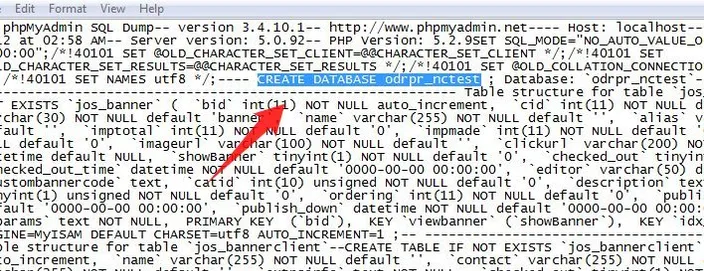
2. Find the line: CREATE DATABASE db_name (it can usually be found at the beginning) and remove it.
*db_name – your database name:
3. Save it and import it using the instructions provided above.
Please contact us if you need any help