With the widespread of cyber threats and attacks, having several security measures to safeguard your online presence is not a bad idea.
In this guide, you will learn how to change your client area and cpanel password, as well as enable two-factor authentication on your hosting accounts.
How to Change Your Client Area Password
To get started, visit our home page and click on the login/register button. Register if you are new and log in if you've got an account.
Once you are logged into your dashboard, you can do one or both of these:
Account Security
- Click on the drop-down arrow beside your name; a list of options will pop up.
- Click on "Account Security" - in there, you might decide to off or on the single sign-on option. as It is on by default.
Change Password
- In the drop-down menu, there is an option to change your password
- Click on it and change your password
Security Question and Setup Two-Factor Authentication
In addition, you might want to change your password if you notice it has been breached, and set up two-factor authentication on your account. To do so, click on that same drop-down menu and navigate to "security settings"
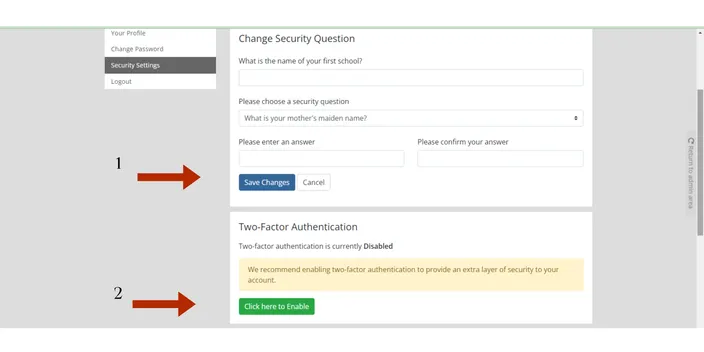
- Choose from the list of security questions presented when you click on the field below "Please choose a security question" and click on 'Save changes'.
- Click on the button with the text: "Click here to enable". From there, head on to configure two-factor authentication for your account.
How to Change a Cpanel Password.
1. Log into your cPanel account using this guide if you don't know how to.
2. Click on the user icon.
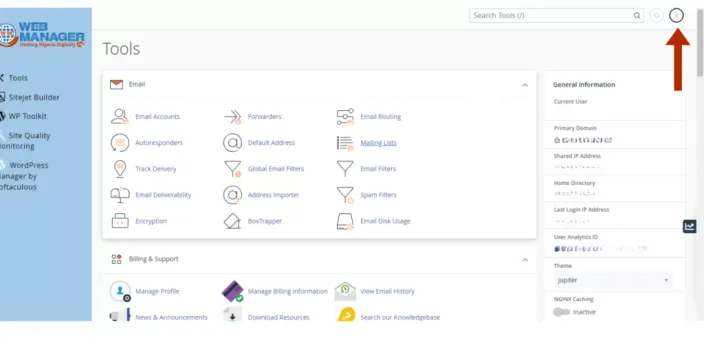
3. Click on password and security
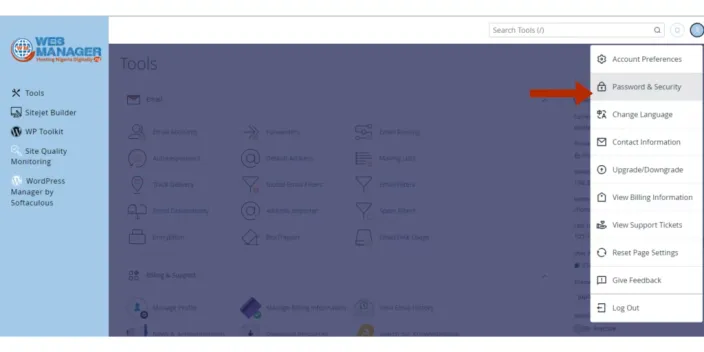
4. Set up a strong password or generate a password.
Two-Factor Authentication
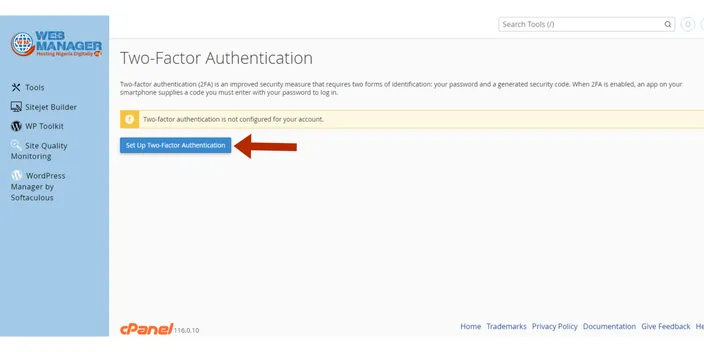
In addition to setting a strong password, you might want to set up two-factor authentication on your cPanel. To do that:
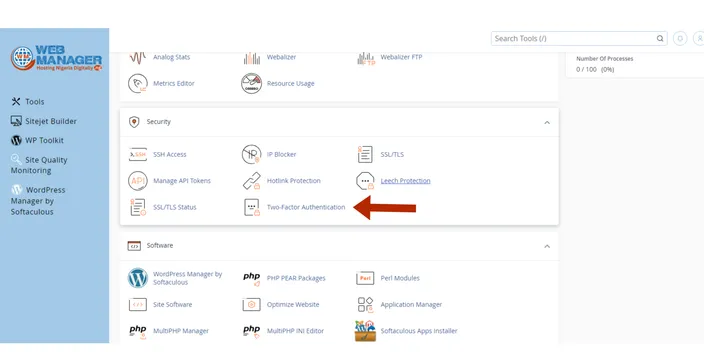
1. Scroll down to the security section in your cPanel and click on two-factor 'authentication'.
4. Go ahead to set up two-factor authentication.
This simple guide is all you need to safeguard your Cpanel and hosting account for now. Please stay tuned for more security tips and updates.
Need help, contact us.