I am glad to assist you today in on the easiest method to access your Hosting file account using FTP clients.
There are 3 possible ways to access your hosting account via FTP. Make sure to get a hosting account before proceeding further.
1. FTP clients
This option is recommended for a large number of files/if the website files are frequently updated and you do not need any form of downtime while doing so. You can always access all your files hosted on HostAfrica using FTP.
An FTP client lets you quickly handle files and get instant access to your web space. The only downside is that you will still need to use cPanel in case you want to extract files because FTP clients do not support this feature.
It is possible to connect through different protocols.
FTPES (explicit SSL mode, encrypted):
Host: ftpes://your server hostname or IP address
Username: your cPanel username or full FTP username
Password: your cPanel password or FTP account password
Port: 21
SFTP (SSH-based secure FTP, encrypted):
Host: sftp://your server hostname or IP address
Username: your cPanel username
Password: your cPanel password
Port: 21098
PLEASE NOTE:
SFTP can be used with cPanel login details only. It is not possible to use it for other FTP accounts.
It is not recommended to use plain FTP due to security reasons. Also, it is disabled on our Business servers. Still, you can use FTPES instead.
There are plenty of FTP clients, and you can choose the one that’s up to you. If you ask us, we suggest that you use FileZilla - this is a popular FTP client with a friendly interface, easy to use, and simple to configure.
Built-in FTP clients of macOS and Windows
Here you’ll find a detailed guide on how to connect to your remote server using built-in FTP clients of macOS and Windows.
2a. macOS
On the macOS X-based computer, you can access FTP servers from the desktop only, without using any third-party software.
Simply follow this step-by-step guide:
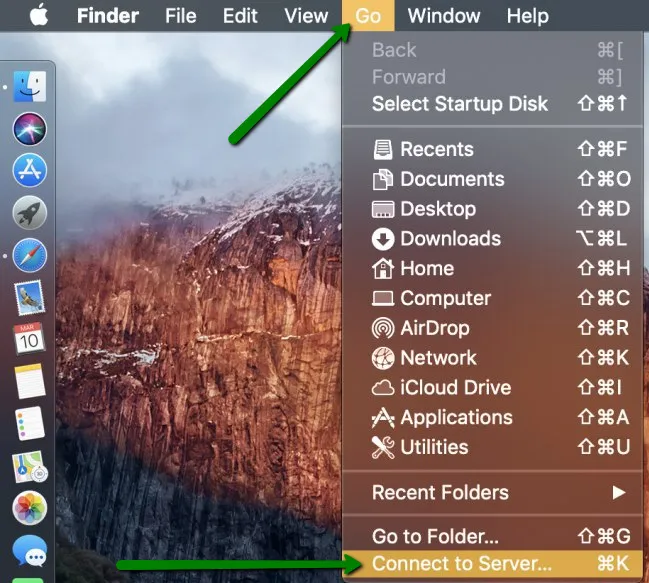
1. Navigate to the Go menu >> click on the Connect to Server option to open a dialog box. Alternatively, you can use the corresponding shortcut key.
2. Enter the server name (including ftp:// or ftps:// (secured connections)) and click Connect.
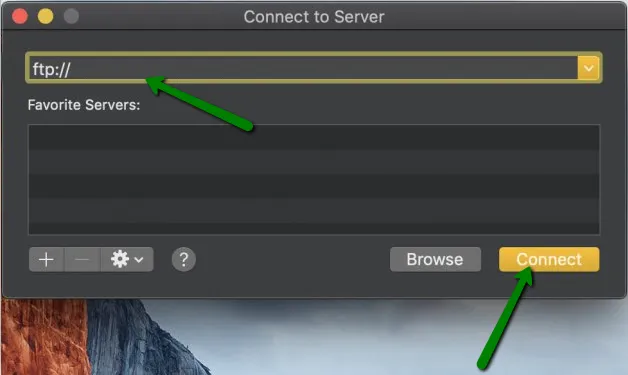
3. Select the Registered User option and enter your Name and Password for cPanel or the FTP account into the corresponding tabs.
It might take a few seconds to make the connection between your Mac and an FTP server.

Once the connection has been successfully established, you will see the content of your FTP server in the folder.
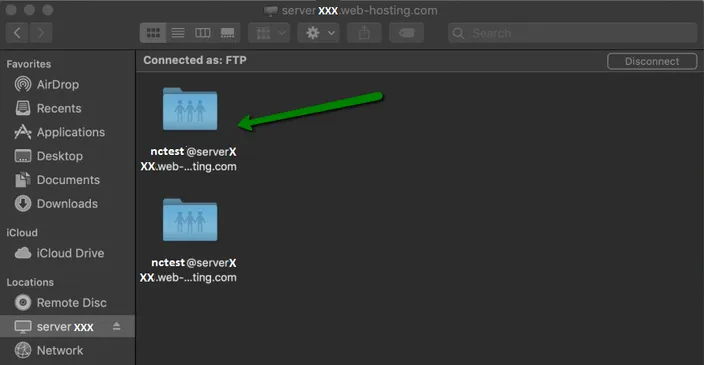
Congratulations! You’re now able to manage your files.
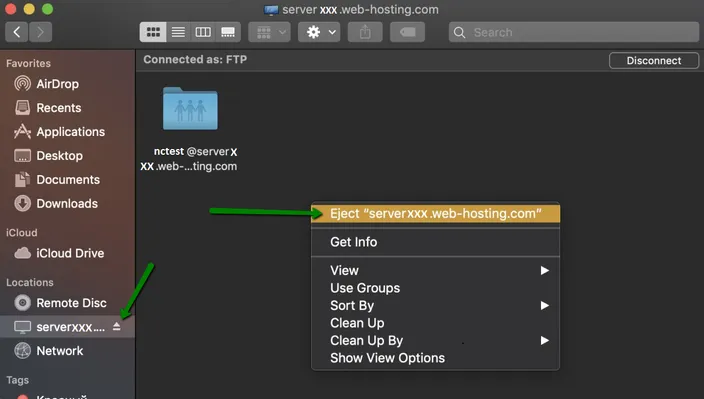
PLEASE NOTE: Mac will automatically mount the FTP folder if you accessed it. If you close the server window, the server folder will still be present and accessible.
In order to exit from the server, right-click the window with your FTP folder >> click Eject the FTP server.
2b. Windows
The Windows file manager (known as File Explorer on Windows 10 and 8 or Windows Explorer on Windows 7) allows you to connect to your FTP servers.
PLEASE NOTE: By default, Windows does not support SFTP connections.
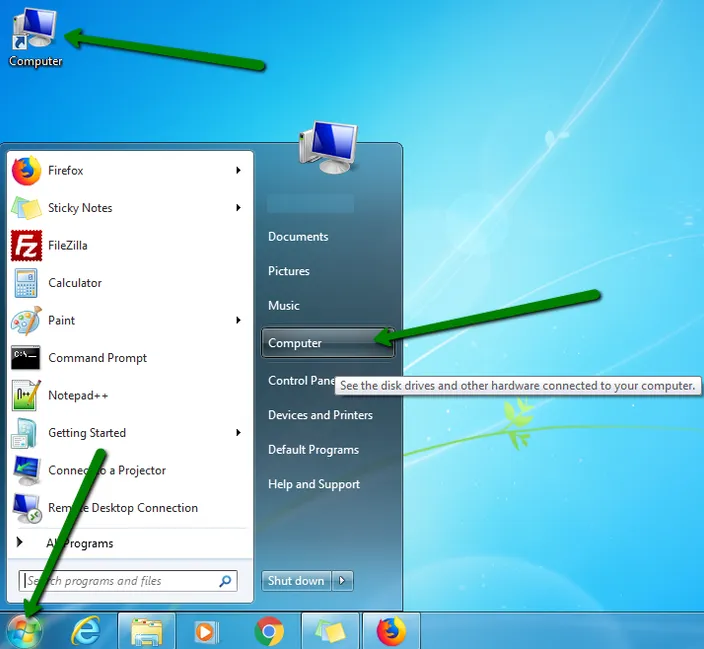
1. To connect to an FTP server, open a File Explorer or Windows Explorer window, click the Computer option on your desktop.
Alternatively, go to your Start menu >> click the Computer option.
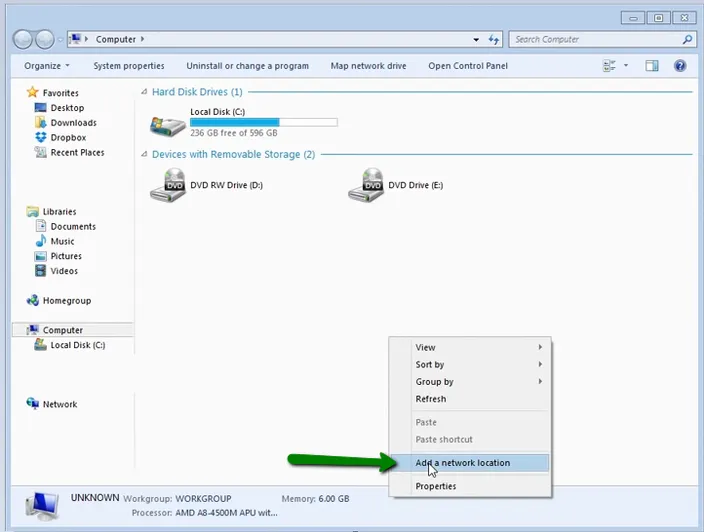
2. Right-click on any empty space and select the Add a network location option.
3. Go through the wizard feature that appears and select Choose a custom network location.
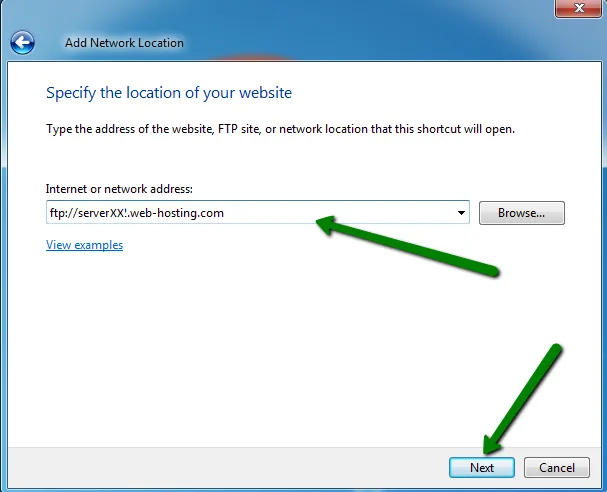
4. Put in your FTP Host (including ftp://) and click Next.
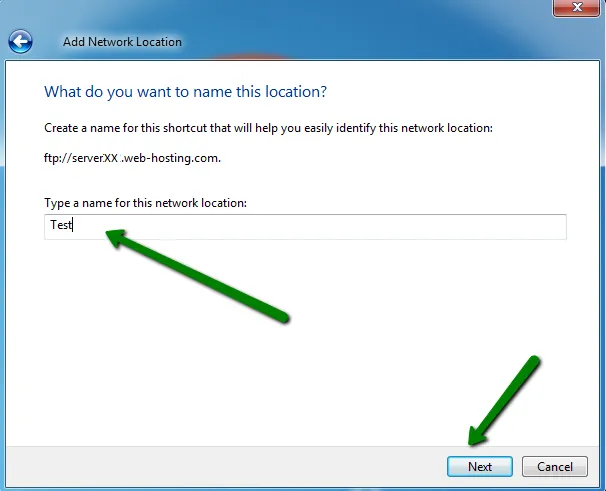
5. Specify a name for the connection and click Next.
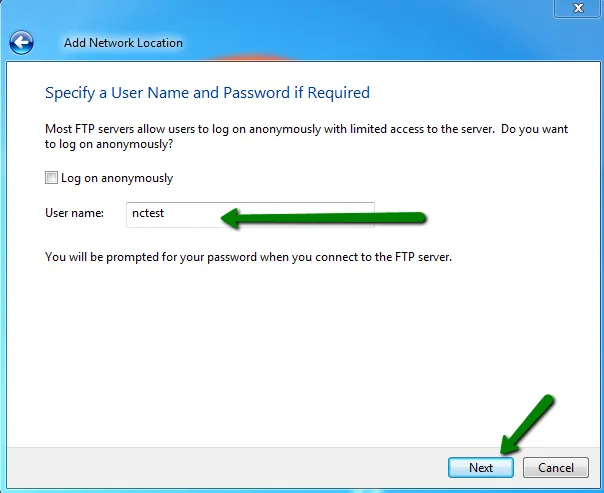
6. Put in your FTP username/cPanel username and click Next.
PLEASE NOTE: The Log on anonymously option should be unchecked.
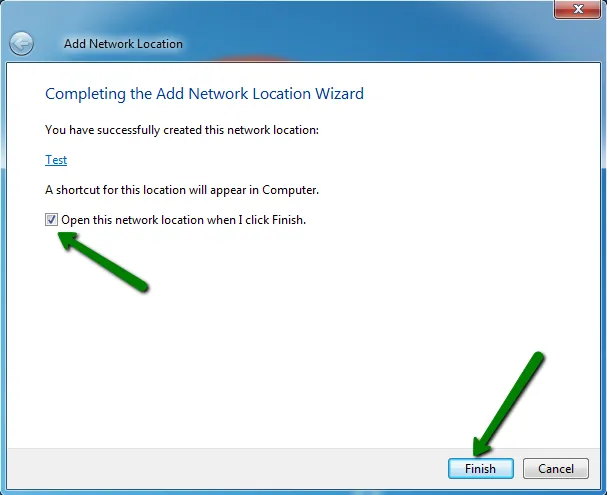
7. Check the Open this network location when I click Finish option and click Finish.
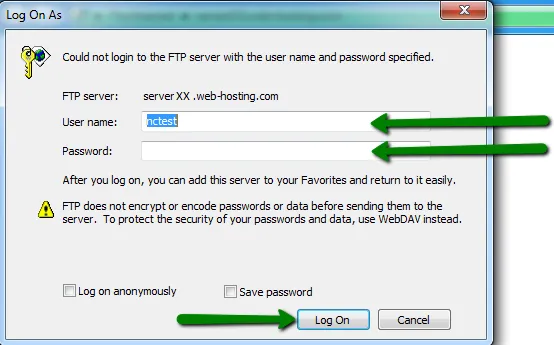
8. In the next window that appears, enter your FTP password and click Log On.
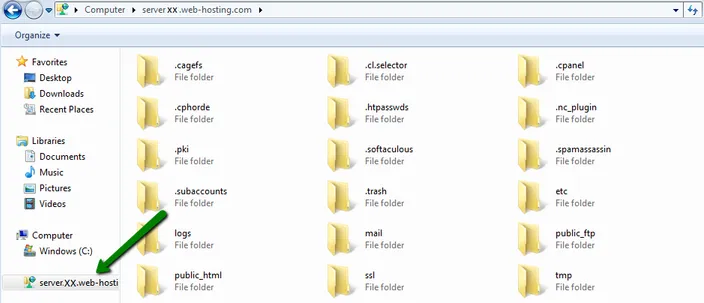
Congratulations! You successfully connected to your FTP server:
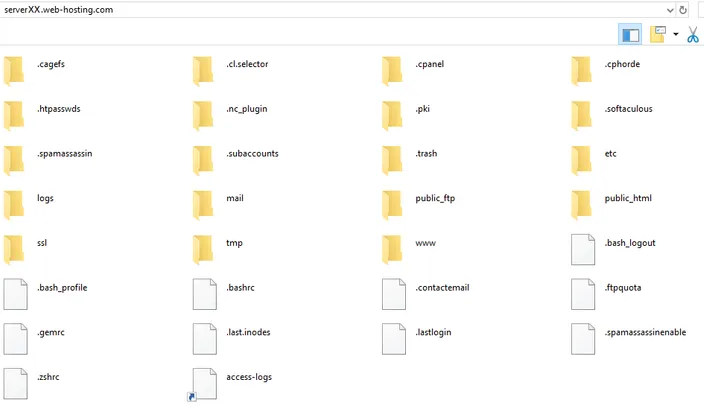
PLEASE NOTE: Windows will automatically mount the FTP folder if you accessed it. If you close the server window, the server folder will still be present and accessible.
In order to close the FTP connection, right-click the connection name on the right side of the screen >> select the Delete option >> click Yes.
3. File Manager in cPanel
This method is recommended for a small number of files. This is also very useful to note that you can easily locate your file manager by just login into your HostAfrica account - click on your services and locate any of your hosting packages. There, you can see your file manager/cpanel.
1. Go to cPanel >> the Files section >> File Manager:
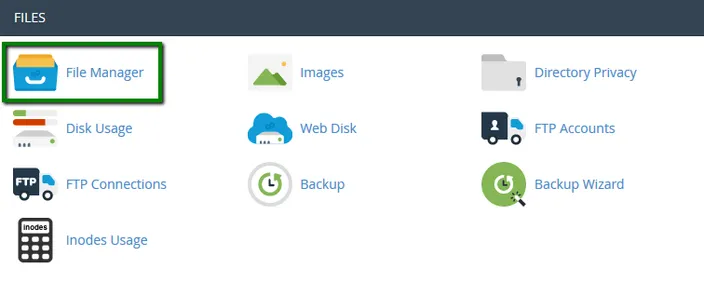
If you want to upload files for the main domain, move to the/public_html folder. The root folder for the addon domain looks like /your_addon_domain.com by default.
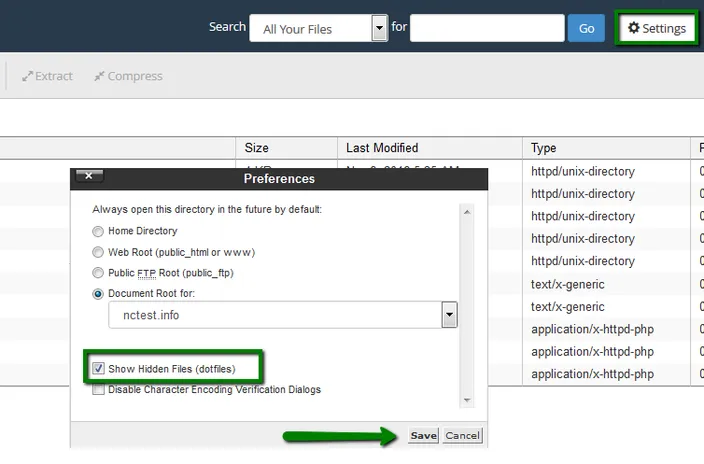
In order to view hidden system files such as .htaccess or others, leave the Show Hidden Files box checked:
2. Once there, hit the Upload button:
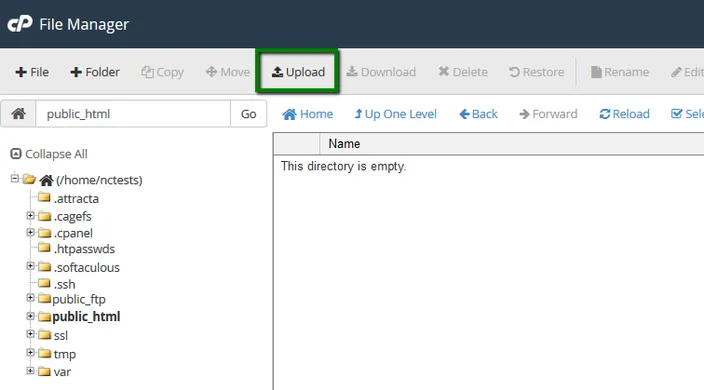
You can also extract or compress archives which is very helpful and fast, especially when uploading/downloading multiple files.
While File Manager is instantly accessible via cPanel and does not need to be installed additionally, it is considered to be less convenient than an FTP client.
Well done! Now you know how to access your hosting account via FTP.