Internet message access protocol (IMAP) and post office protocol (POP) are the two ways your email app collects mail from the server. IMAP leaves your mail on the server and keeps every device in sync. POP downloads mail to one device and, by default, deletes the server copy.
If you check email on more than one device, and almost everyone does, choose IMAP. POP still fits one narrow case, but otherwise it’s almost never used.
Your mail app asks you to choose IMAP vs POP once, during setup, then never mentions it again. Let’s take a look at IMAP and POP separately, then compare them, so you can choose with confidence.
What is IMAP?
IMAP is a protocol used to retrieve emails from a mail server. It keeps your mail on the server and synced across multiple devices, so that your phone and your laptop aren’t holding separate copies. Whichever device you use to open email, it’s showing you a live version of the same mailbox.
That’s why accessing your email and any action you take on your email stays consistent. If you delete an email receipt on your phone, it’s gone from your laptop too in just a few minutes. Sign in and read an email on a borrowed computer and it’s no longer sitting there unread when you get home and open your own.
It also means your mail survives your devices. Say your phone gets stolen on the way to the supermarket or that old cranky laptop finally gives up, the mailbox still stays untouched. You sign in on a new device and everything’s right there, the way you left it.
The one downside of IMAP is storage management. Because your mail stays on the server, it goes into your email storage. Three years of attachments will eventually fill it and a full mailbox stops accepting new messages. That’s easy enough to manage because your email provider will usually blast you with notifications whenever your mailbox is approaching its storage limits but it’s still something to consider.
What is POP?
POP, its latest version being POP3, is another email message retrieval protocol, but it works differently. Your app connects to the server, downloads new messages onto the device you are using at the time, and then deletes them from the server.
The mail now exists on that one machine and nowhere else, it doesn’t sync with other devices you open mail on later on.
This was sensible enough when POP was designed. Server storage costs were through the roof, plus most people had just one computer for the whole family.
But as internet usage and personal computer popularity grew, limited email accessibility quickly became an issue. For example, your desktop in the shop collects mail at 8am and your customer sends in a question right before that. It wasn’t urgent, you thought you’d reply to it over lunch on your phone. Yet, you realize you don’t remember certain details he asked about. Sadly, you can’t check that until you return to the office because your emails are on your computer.
That’s inconvenient enough, but the second problem’s way worse. If that computer is stolen or the hard drive breaks down, the mail is simply gone. There’s no server copy to restore from because POP deleted it.
IMAP vs POP: A Quick Overview
Let’s see how IMAP and POP compare side-by-side on the most crucial aspects of email management:
| IMAP | POP | |
|---|---|---|
| Multi-device sync | Yes | No |
| Where mail lives | On the server | Downloaded to one device |
| Server storage used | Higher | Lower |
| If the device is lost | Mail is safe on the server | Without backup, mail is gone |
| Best for | Almost every business | Single-device, low-storage edge case |
Should You Choose IMAP or POP
In 99% of the cases, simply use IMAP. For a business with staff who check mail on a phone and a computer, it’s the only option that behaves the way people expect. And besides storage costs, there are practically no drawbacks to it.
POP is worth considering in one situation: you want mail pulled off the server on purpose and onto a single machine, but you need to have your own backups running. That might be an accounts computer that keeps years of records locally on a small mailbox storage size, or a setup where somebody has decided that mail should not sit on a server long-term due to security reasons. It’s a deliberate choice that still has its uses, but certainly not a default use case.
There’s also somewhat of a middle ground: you might go with POP because you want your emails automatically downloaded to your computer, but still don’t want them off the server. In that case, look for a setting along the lines of leave a copy on the server. Turning it on removes the worst of the risk, that a dead hard drive takes your mail with it. Most mail apps have this and most people never find it.
Setting Up IMAP on Your Devices
When setting up fresh, every mail app asks the same things: your email address, your password, and the incoming and outgoing server details.
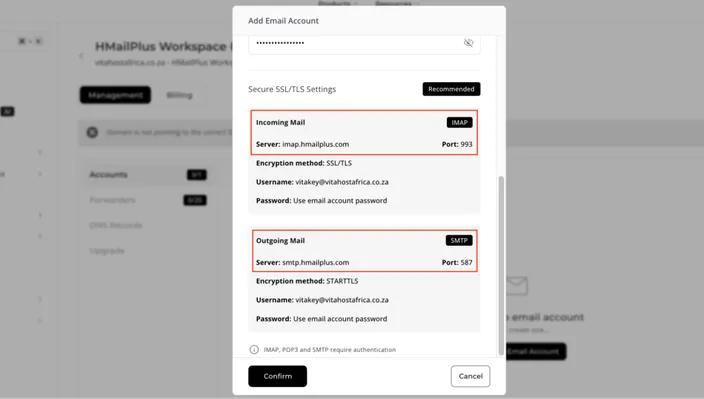
Two of those come from your provider (directly, not from their online guide). Your incoming server handles IMAP, and a separate outgoing one handles the SMTP server, which is what sends your mail. They’re different addresses and different ports, so both need to be entered correctly. Get one of them wrong and you’ll find that you either can’t receive emails or aren’t able to send any.
HostAfrica email accounts use the Open-Xchange email system, and your exact server settings are available in your account.
Finding email server settings for a new email account
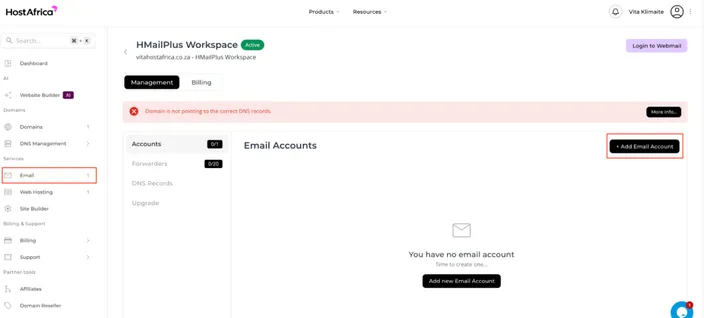
If you’re creating a new professional email account with HMailPlus, you’ll see your server settings from the get go.
- Go to Email and click on Add Email Account.
- Enter your details and email address you want your clients to reach you at, then scroll down. You’ll see IMAP and SMTP details in the boxes below.
Finding email server details for existing email
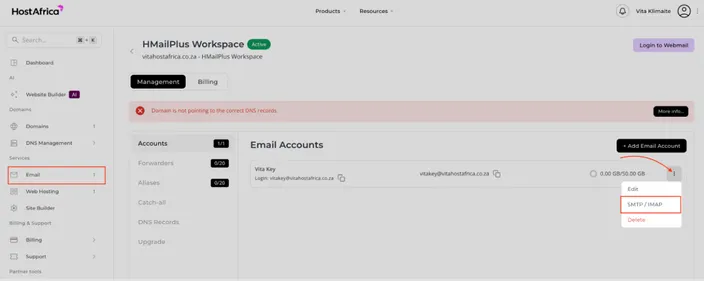
If you already have an HMailPlus email up and running:
- Go to Email, then click the three dots on the right. Click SMTP/IMAP on the little pop up that appears.
- You’ll see a popup with your IMAP and SMTP details.
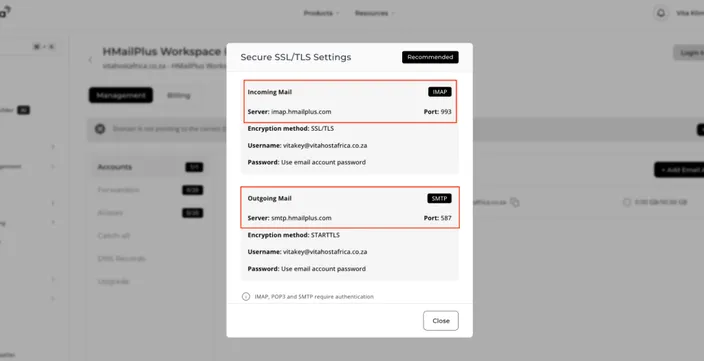
Important: Don’t copy details in the screenshots of this article. Instead, follow the steps provided to make sure you’re seeing the latest server settings.
In both cases, as you’re setting up IMAP on your chosen email app (we’ll use Thunderbird for this example), check the setup very carefully.
Email apps tend to pull automatic data on server settings that isn’t always correct.
Pay attention to what’s listed under Server as well as the details that follow. You’ll see that in this case, neither one of the servers are matching details in your HMailPlus account. The SMTP port is incorrect too.
If that’s the case, click on Edit configuration or a similar field in another email app.
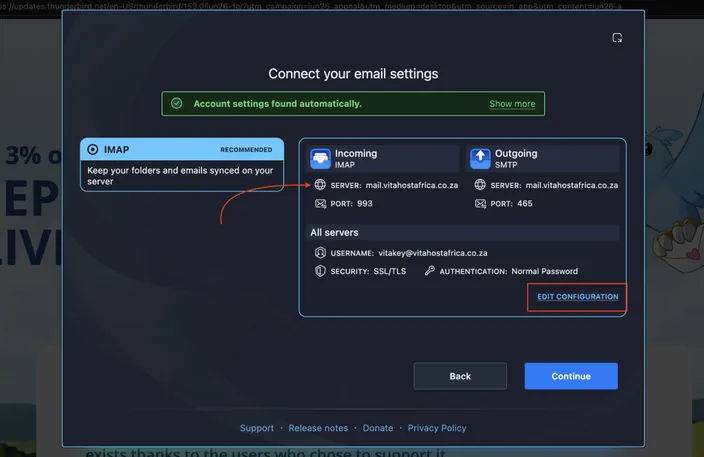
Manually change IMAP server settings.
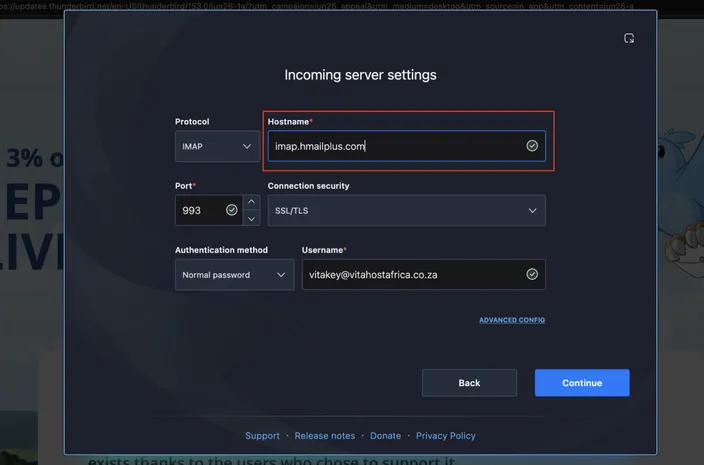
Then do the same for SMTP, paying attention to Port, Connection security settings and other details.
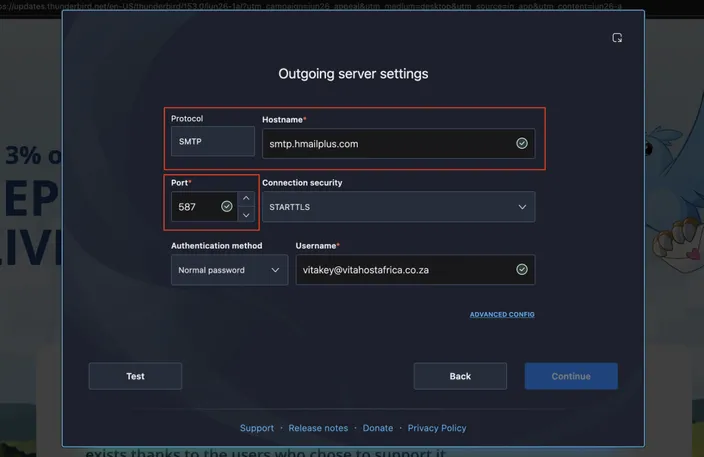
Note: If you can’t proceed with the setup, chances are your email app is forcing you to test your setup to make sure you can actually send emails and receive them. Click on Test, and if all is well, you’ll be able to proceed to authentication.
Enter the same details on every device you use. Since IMAP syncs, adding a second device poses no risk, the new device simply starts showing the same mailbox.
IMAP vs POP FAQ
What is IMAP?
IMAP is a way for your email service to read mail that stays stored on the server. Because the mail never leaves the server, every device you sign in from shows the same inbox, the same folders and the same read and unread messages.
What is POP3?
POP3 is the current version of POP, the two names mean the same thing in practice. It downloads emails from the server to one device and, unless you change a setting, deletes the server copy.
Is IMAP or POP better?
IMAP is the better choice for almost every business. It’s the only one of the two that works properly across a phone and a computer, and it keeps your mail safe if a device is lost. POP is better only in the specific cases where you want mail off the server on purpose.
Does POP delete my email from the server?
By default, yes, POP deletes your email from the server. Most mail apps have a leave a copy on the server option that stops this.
Can I switch from POP to IMAP later?
Yes, you can certainly switch between POP and IMAP later. Only one precaution: mail that POP already downloaded is sitting on that device, not on the server, so it won’t appear in your new IMAP inbox by itself.
Does IMAP use more storage?
On the server, yes, IMAP uses more storage, because your mail stays there. That’s the trade off for having it available everywhere and safe from a lost device. Watch your quota and archive or upgrade when it fills.
Need Help Setting Up Your Business Email?
Email on your own domain, such as hello@bakerykimmy.com.ng rather than a generic address, is one of the cheapest things a business can do to look established.
HostAfrica email hosting supports IMAP across all your devices. If you’d rather not work through the setup screens yourself, our support team will walk you through it or get it configured for you.