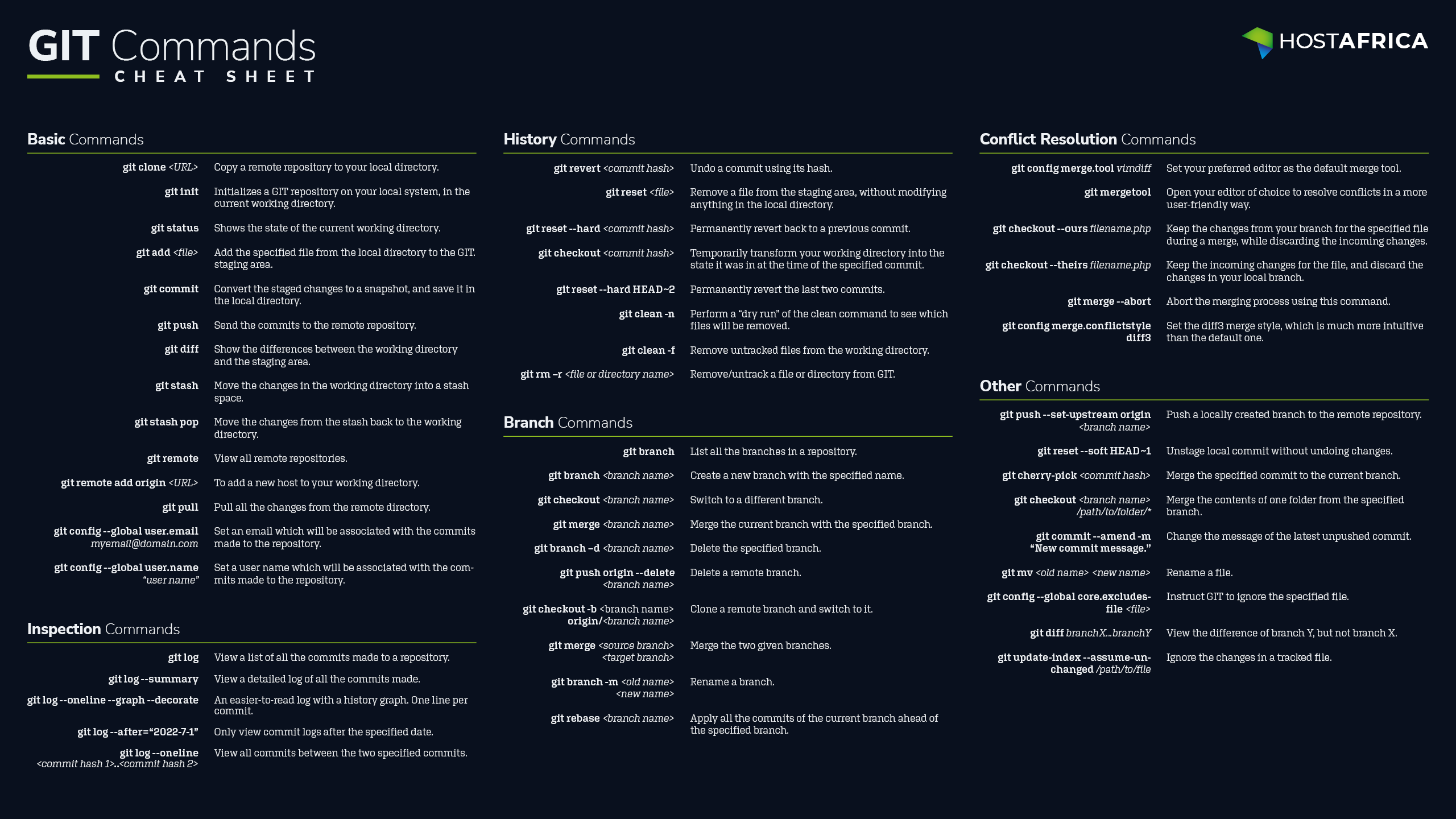
GIT is unarguably the most powerful, feature-rich, and stable version control system (VCS) out there. It’s a distributed VCS, which means that all contributors have a copy of the entire repository, along with all the change history.
This makes it easier for different people to simultaneously work on a project, without encountering conflicts. It also means that there is no single point of failure, i.e. even if the repository server crashes, a copy from any developer machine can be used to restore it.
If you do a man git on your machine, it will show you hundreds of commands, along with their descriptions. This can be overwhelming, especially if you are just getting started. The good part is that you don’t need to know all of these commands, just a small subset.
In this article, we will be sharing a GIT cheat sheet with the top 50 commands every GIT user should know.
Basic Commands
Let’s start with the very basics.
Command
Description
| Command | Description |
|---|
git clone <URL>
|
Copy a remote repository to your local directory.. |
| Command | Description |
|---|
git init
|
Initializes a GIT repository on your local system. You will use this command if you are starting a new GIT project. |
| Command | Description |
|---|
git status
|
Shows the state of the current working directory, e.g. how many files have been added/changed, which branch you are on, whether your local copy is up to date with the remote version, etc. |
| Command | Description |
|---|
git add <file>
|
Add the specified file from the local directory to the staging area of GIT. |
| Command | Description |
|---|
git commit
|
Convert the staged changes to a snapshot, and save it in the local directory. |
| Command | Description |
|---|
git push
|
Send the commits (snapshots) to the remote repository. |
| Command | Description |
|---|
git diff
|
Show the differences between the working directory and the staging area. |
| Command | Description |
|---|
git stash
|
Move the changes in the working directory into a stash space. This allows you to save your changes for future use, without making a new commit. |
| Command | Description |
|---|
git stash pop
|
Move the changes from the stash back to the working directory. |
| Command | Description |
|---|
git remote
|
View all remote repositories. |
| Command | Description |
|---|
git remote add origin <URL>
|
To add a new host to your working directory. |
| Command | Description |
|---|
git pull
|
Pull all the changes from the remote directory, and merge them with the local changes. |
| Command | Description |
|---|
git config --global user.email myemail@domain.com
|
Set an email which will be associated with the commits made to the repository. |
| Command | Description |
|---|
git config --global user.name "user name"
|
Set username which will be associated with the commits made to the repository. |
History Commands
GIT maintains a log of all the changes/snapshots/commits ever made to a repository. You can switch back to a commit at any time, or undo a change you made in your working directory. Here are a few commands to remember in this regard:
Command
Description
| Command | Description |
|---|
git revert <commit hash>
|
Each commit in a GIT repository can be identified by a unique hash identifier. This command lets you undo a commit using its hash. |
| Command | Description |
|---|
git reset <file>
|
Remove a file from the staging area, without modifying anything in the local directory. |
| Command | Description |
|---|
git reset --hard <commit hash>
|
Permanently revert back to a previous commit. Please note that this is a potentially dangerous command, as it undoes all of the changes after the specified commit. |
| Command | Description |
|---|
git checkout <commit hash>
|
Temporarily transform your working directory into the state it was in at the time of the specified commit. |
| Command | Description |
|---|
git reset --hard HEAD~2
|
Permanently revert the last two commits. |
| Command | Description |
|---|
git clean -n
|
Perform a “dry run” of the clean command to see which files will be removed. It’s recommended to use this command before executing git clean –f. |
| Command | Description |
|---|
git clean -f
|
Remove untracked files from the working directory. Before using this, run the git clean –n command to see which files will be removed. |
| Command | Description |
|---|
git rm –r <file or directory name>
|
Remove/untrack a file or directory from GIT. |
Branching Commands
Branching is arguably GIT’s strongest feature. You can think of a branch as an independent copy of the original repository. Using branches, you can start developing new features and push them to the remote server, without changing anything in the original repository.
When a feature has been fully developed and tested, the branch can be merged to the main repository. Here are a few important branching commands to know:
Command
Description
| Command | Description |
|---|
git branch
|
List all the branches in a repository. |
| Command | Description |
|---|
git branch <branch name>
|
Create a new branch with the specified name. |
| Command | Description |
|---|
git checkout <branch name>
|
Switch to a different branch. |
| Command | Description |
|---|
git merge <branch name>
|
Try to merge/join the current branch with the specified branch. |
| Command | Description |
|---|
git branch –d <branch name>
|
Delete the specified branch. |
| Command | Description |
|---|
git push origin --delete <branch name>
|
Delete a remote branch. |
| Command | Description |
|---|
git checkout -b <branch name> origin/<branch name>
|
Clone a remote branch and switch to it. |
| Command | Description |
|---|
git merge <source branch> <target branch>
|
Merge the two given branches. |
| Command | Description |
|---|
git branch -m <old name> <new name>
|
Rename a branch. |
| Command | Description |
|---|
git rebase <branch name>
|
Apply all the commits of the current branch ahead of the specified branch. |
Inspection Commands
Here is a list of commands you can use to monitor and inspect GIT history:
Command
Description
| Command | Description |
|---|
git log
|
View a list of all the commits made to a repository. |
| Command | Description |
|---|
git log --summary
|
View a detailed log of all the commits made to a repository. |
| Command | Description |
|---|
git log --oneline --graph --decorate
|
An easier-to-read log with a history graph. One line per commit. |
| Command | Description |
|---|
git log --after="2022-7-1"
|
Only view commit logs after the specified date. |
| Command | Description |
|---|
git log --oneline <commit hash 1>..<commit hash 2>
|
View all the commits between the two specified commits |
Conflict Resolution Commands
Now let’s talk about that part of GIT that no one likes: resolving conflicts. Conflicts arise when more than one people change the same line in the same file, or if one person deletes a file while another modifies it. Most people encounter conflicts while merging/rebasing branches. Here are a few commands that can reduce the pain of resolving conflicts:
Command
Description
| Command | Description |
|---|
git config merge.tool vimdiff
|
Set your preferred editor as the default merge tool. |
| Command | Description |
|---|
git mergetool
|
Open your editor of choice to resolve conflicts in a more user-friendly way. |
| Command | Description |
|---|
git checkout --ours filename.php
|
Take the changes from your branch for the file during a merge, while discarding the incoming changes. |
| Command | Description |
|---|
git checkout --theirs filename.php
|
Take the incoming changes for the file, and discard the changes in your local branch. |
| Command | Description |
|---|
git merge --abort
|
If you are in the middle of a manual merge, and have made a grave mistake, you can abort the merging process using this command. |
| Command | Description |
|---|
git config merge.conflictstyle diff3
|
Set the diff3 merge style, which is much more intuitive than the default one. |
Other Commands
To finish off our GIT cheat sheet, here are some other useful commands that can come in handy:
Command
Description
| Command | Description |
|---|
git push --set-upstream origin <branch name>
|
Push a locally created branch to the remote repository. |
| Command | Description |
|---|
git reset --soft HEAD~1
|
Unstage local commit without undoing changes. |
| Command | Description |
|---|
git cherry-pick <commit hash>
|
To merge the specified commit to the current branch. |
| Command | Description |
|---|
git checkout <branch name> /path/to/folder/*
|
To merge the contents of only one folder from the specified branch. |
| Command | Description |
|---|
git commit --amend -m "New commit message"
|
Change the message of the most recent unpushed commit. |
| Command | Description |
|---|
git mv <old name> <new name>
|
Rename a file. |
| Command | Description |
|---|
git config --global core.excludesfile <file>
|
Instruct GIT to ignore the specified file, i.e. never track it. |
| Command | Description |
|---|
git diff branchX...branchY
|
View the difference of what is in branch Y, but not in branch X. |
| Command | Description |
|---|
git update-index --assume-unchanged /path/to/file
|
Ignore the changes in a tracked file. |
Downloadable Cheat Sheet
Download the 2560×1440 wallpaper cheat sheet for easy reference.
Download the Cheat Sheet